CentOS 7 Kernel Update to Version 5.
Kernel Update
Introduction
The Linux kernel is the foundation upon which all Linux distributions operate. It is open-source software, which means that anyone can decompile, explore, and modify the code.
Updating the kernel can enhance security, add functionality, and improve the performance of the operating system.
This guide will show you how to update the Linux kernel on CentOS 7.
Prerequisites
- A CentOS server
- Access to the command line / terminal
- root privileges
- A recent backup of your system
Steps to Update the CentOS Kernel
The yum package manager allows for kernel updates. However, CentOS does not offer the latest kernel version in its official repository.
To update the kernel in CentOS, you need to install a third-party repository called ElRepo. ElRepo provides the latest kernel version available on kernel.org.
Official releases are tested to ensure they work properly and do not destabilize the applications and OS functions. There are two types of Linux kernel releases:
- Stable long-term supported kernel release – updated less frequently but supported for a longer time.
- Mainline kernel release – shorter support duration but more frequent updates.
Step 1. Check the Current Kernel Version
To check the current kernel version on CentOS, open a command-line interface and enter the following command:
uname -msrThe system should return an entry like this:
Output
Linux 3.10.0-862.el7.x86-64 x86-64
The output shows which kernel version you are currently using and the architecture it is based on.
Step 2. Update CentOS Repositories
Before updating the kernel, all packages must be updated to the latest version.
To update CentOS software repositories, use the command:
sudo yum -y updateNow, your software repository is updated, ensuring you have access to the latest kernel version.
Note: The -y flag instructs the system to answer "yes" to any pop-up prompts.
Enable the ELRepo Repository
To install a new kernel version, you need to enable a new repository (the ELRepo repository).
In the terminal window, enter:
sudo rpm --import https://www.elrepo.org/RPM-GPG-KEY-elrepo.orgThe previous command installs the GPG key for the ELRepo repository. This is important because CentOS won't allow the installation of unsigned software packages. The GPG key provides a digital signature to verify the authenticity of the software.
Then install the ELRepo repository with the following command:
sudo rpm -Uvh https://www.elrepo.org/elrepo-release-7.0-3.el7.elrepo.noarch.rpm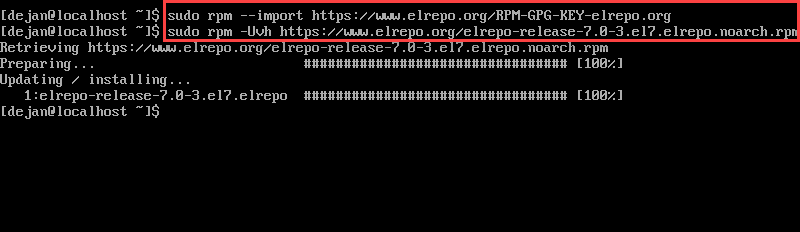
Step 4: List Available Kernels
To obtain a list of available kernels, enter:
yum list available --disablerepo='*' --enablerepo=elrepo-kernelThe system should return a list of available kernels. Look for the line that says kernel-lt (indicating the stable long-term release) or kernel-ml (indicating the mainline release with shorter support duration but more frequent updates).
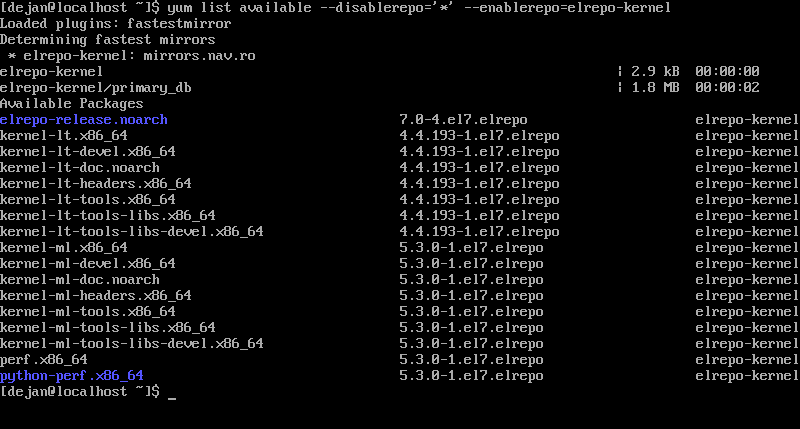
Then, look at the right column and note the string of letters and numbers (e.g., "4.4.113-1.e17.elrepo"). This is the kernel version.
Use this information to decide which kernel version you want to install. As you can see, Linux Kernel 5 is the latest mainline version.
Step 5: Install the New CentOS Kernel
To install the latest mainline kernel:
sudo yum --enablerepo=elrepo-kernel install kernel-ml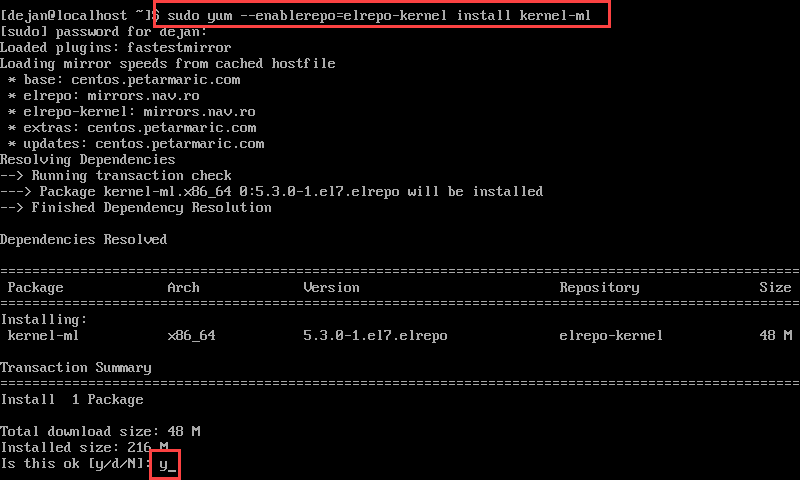
To install the latest stable long-term kernel:
sudo yum --enablerepo=elrepo-kernel install kernel-lt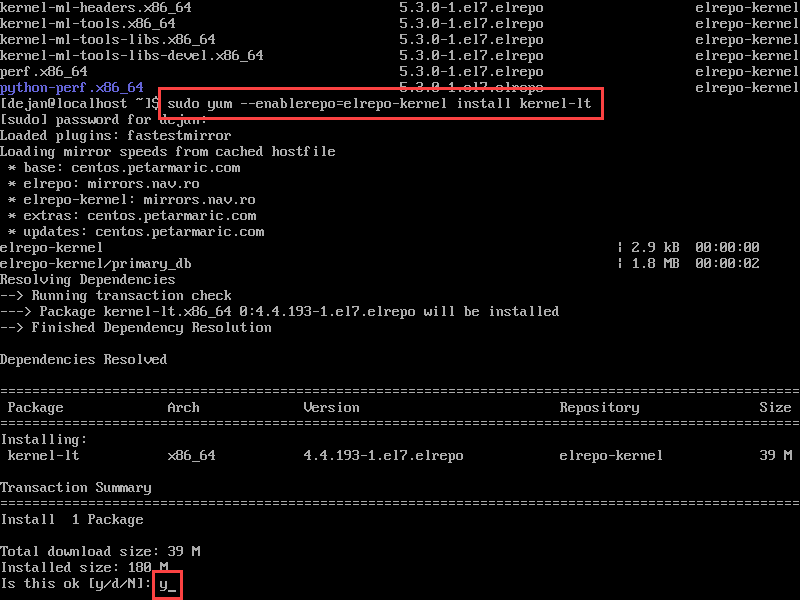
The system should download the software and then prompt you to confirm the installation. Enter y and press Enter.
Step 6: Reboot and Choose the New Kernel
Reboot your system by entering the command:
rebootYou will be presented with the GRUB or boot menu.
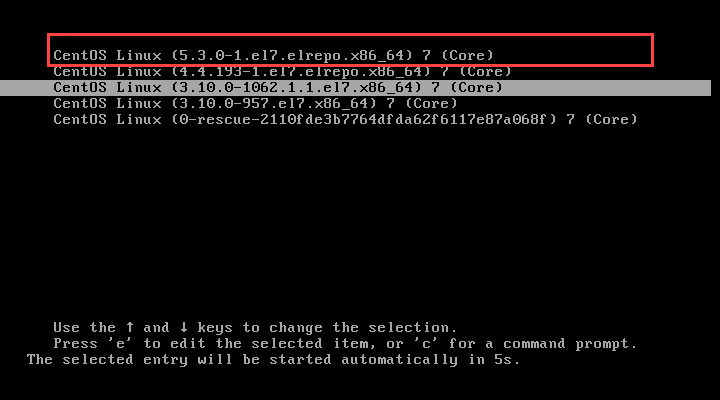
Use the arrow keys to select the newly installed Linux kernel and press Enter. Your operating system should boot normally.
Step 7: Check Functionality
Take a moment to test the functionality of your CentOS system. Ensure that all your software runs correctly and without errors. Are all your network functions working properly?
Test your new kernel to detect and resolve any issues in a timely manner. Or, if there are no issues, you can revert to the old kernel.
Step 8: Set the Default Kernel Version
Once you confirm that the new kernel is compatible and functioning correctly, you may want to edit the GRUB bootloader to make your new kernel the default one it loads.
Go to /etc/default/ and open the grub file in a text editor. Alternatively, enter the following in the terminal:
sudo vim /etc/default/grub